How to use custom wallpapers
There are two ways to get custom wallpapers onto your XBOX: download directly onto your console by using Edge or download to a thumbdrive using a PC, and use that to transfer the wallpaper to your console.
Both methods are covered below. We'll go over the easiest, using Edge, first.
Using Edge to get custom wallpapers
-
Step 1
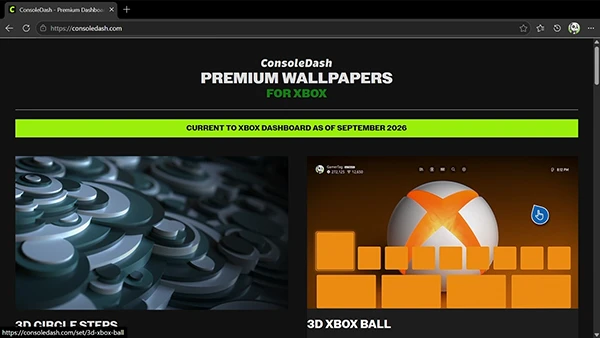
If you don't have Edge installed on your console, download it. Once downloaded, open it and navigate to consoledash.com. Find a wallpaper you like, and click through to see color options.
-
Step 2
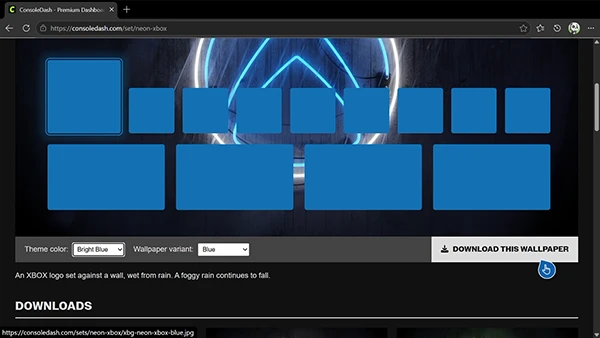
Pick a wallpaper from the preview selector at the top of the page or scroll down to select from thumbnails. Once you've got a color picked out, click to download.
-
Step 3
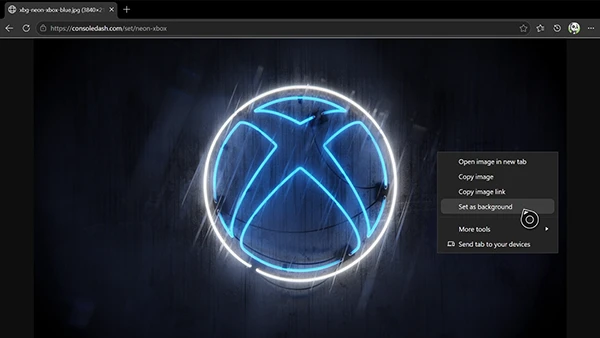
Once the wallpaper is downloaded, you'll see the high-resolution version in full-screen. Hover the cursor over it and press the Menu Button to open Edge's context menu, then select Set as background. After a moment, you will see a system notification appear confirming that the new background is set.
-
Step 4
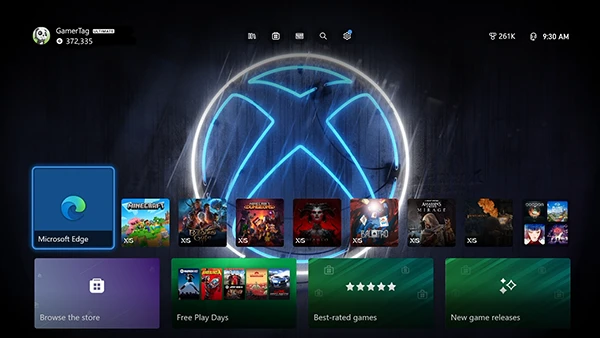
Exit to the home screen and enjoy your new wallpaper!
Using a thumbdrive to get custom wallpapers
-
Step 1
Using your PC, find your favorite wallpaper on consoledash.com, then download it and save the image to a thumbdrive.
-
Step 2
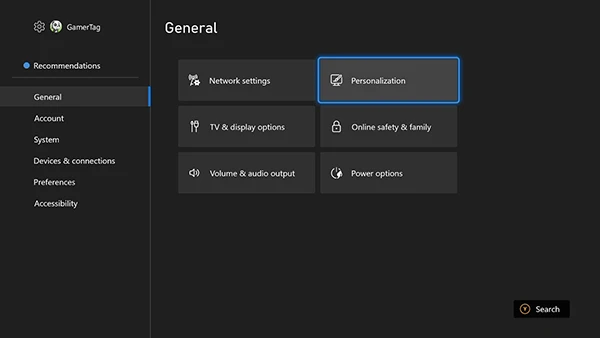
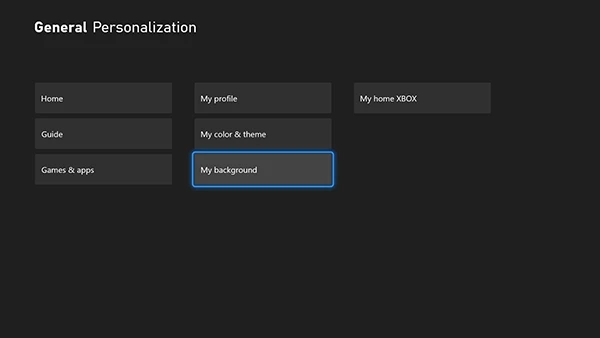
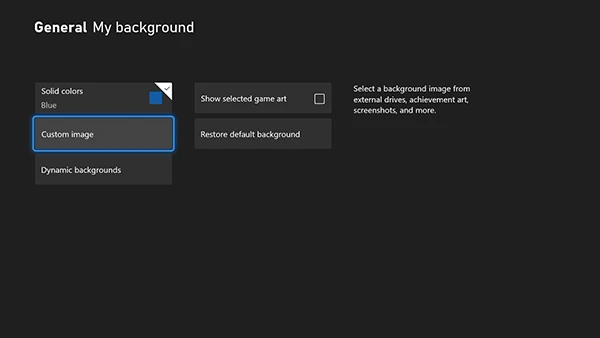
Plug the thumbdrive into your XBOX, then go to Settings > General > Personalization > My background, and select Custom image.
-
Step 3
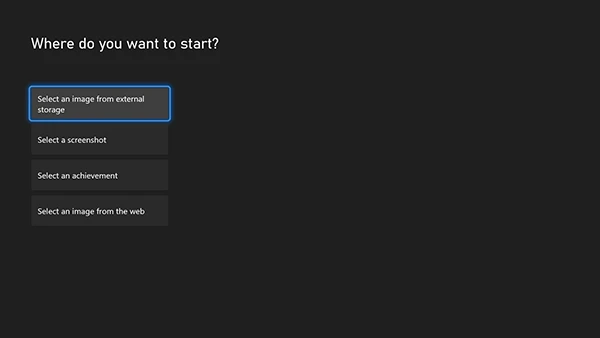
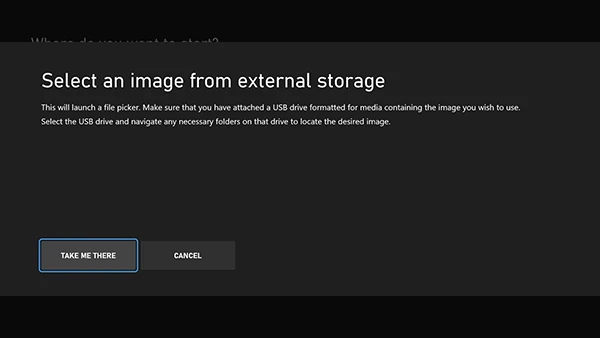
When prompted 'Where do you want to start?', choose Select an image from external storage. Choose Take me there at the next prompt.
-
Step 4
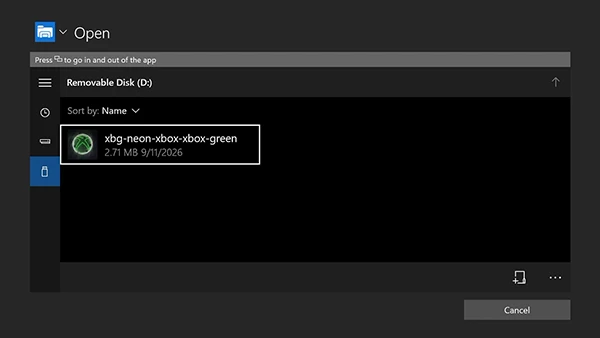
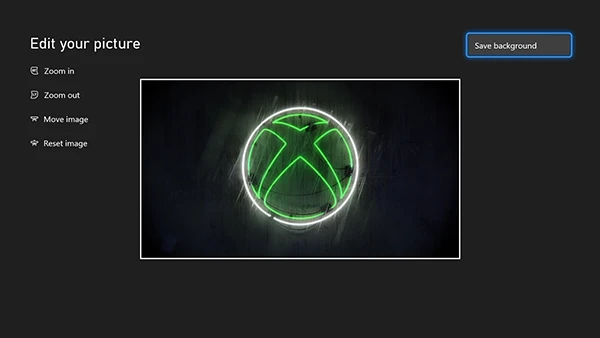
When the file picker appears, select the thumbdrive tab on the left side. Any wallpapers that you copied to the thumbdrive will appear in a list on the right, in the main window. Choose the one you want to use, and then in the 'Edit your picture' prompt, select Save background. A small window will appear to confirm the new wallpaper.
-
Step 5
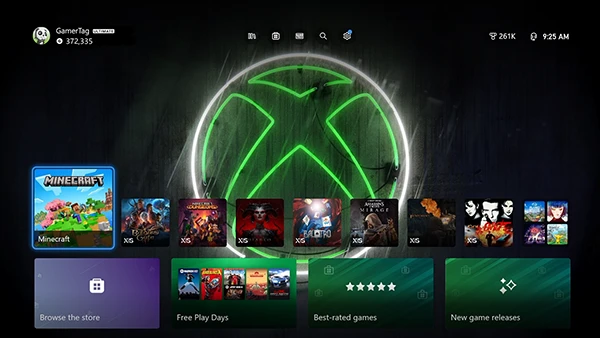
Exit to the home screen and enjoy your new wallpaper!